Translate selected text on a Mac, in any app
Select the text, Control-click it and choose Translate; then Replace with Translation puts the result where the original was. That is built into macOS. What it lacks is a keyboard shortcut and a few apps — the rest of this page is about those.

1. The built-in way: Translate in the context menu
Since macOS Monterey every Mac can translate a selection without installing anything. It works in Apple’s apps, in Safari and in some third-party apps, as Apple puts it.
- Select the text.
- Control-click the selection (or click with two fingers) and choose Translate “…”.
- Check the languages at the top of the panel. If the source was guessed wrong — it happens with a few words of English — pick the right one.
- Click Replace with Translation to put the result in place of the original, or Copy Translation to take it elsewhere.
Replace only appears where the text can be edited. On a web page or in a message you received, you can read and copy the translation, not swap it in.
It also works offline: System Settings → General → Language & Region → Translation Languages, download the languages you need, and switch on On-Device Mode if you want nothing sent to Apple. Apple notes that offline results may be less accurate.
Two things it does not do: there is no keyboard shortcut for it, and it covers 25 languages — Kazakh and Uzbek are not among them.
2. Give it a key: a Shortcuts Quick Action
Shortcuts has a Translate Text action, and a shortcut can run on whatever you selected, from a key of your own.
- Open Shortcuts and create a new shortcut.
- In its details, turn on Use as Quick Action and Services Menu, and set it to receive Text.
- Add Translate Text, set the language to translate into, then add Show Result (or Copy to Clipboard).
- Click Add Keyboard Shortcut and press the keys you want.
Now the key translates the selection in any app that offers Services. The result appears in a window or lands on the clipboard; putting it back over your text is a paste you do yourself.
Prefer Google Translate? There is no Google Translate app for Mac. An Automator Quick Action with a Run Shell Script step can open translate.google.com with the selected text in a browser tab — a translation to read, not one that comes back into your document.
3. DeepL: ⌘C twice
The DeepL app for Mac (macOS 14 or later) translates whatever is selected when you hold ⌘ and press C twice; ⌘⇧C C lets you pick the target language first. The translation opens in DeepL’s window, where you copy it out. As of October 2026 the free plan covers 50,000 characters a month, and paid plans start at €7.49 a month billed yearly.
4. Jarq: ⌥T, and the translation stays in the app you are in
Jarq sits in the menu bar. Select text anywhere and press ⌥T — or hover the small dot that appears next to the selection — and a row of buttons opens: EN · RU · Improve by default. Click a language and the translation comes back in a bubble beside your text.
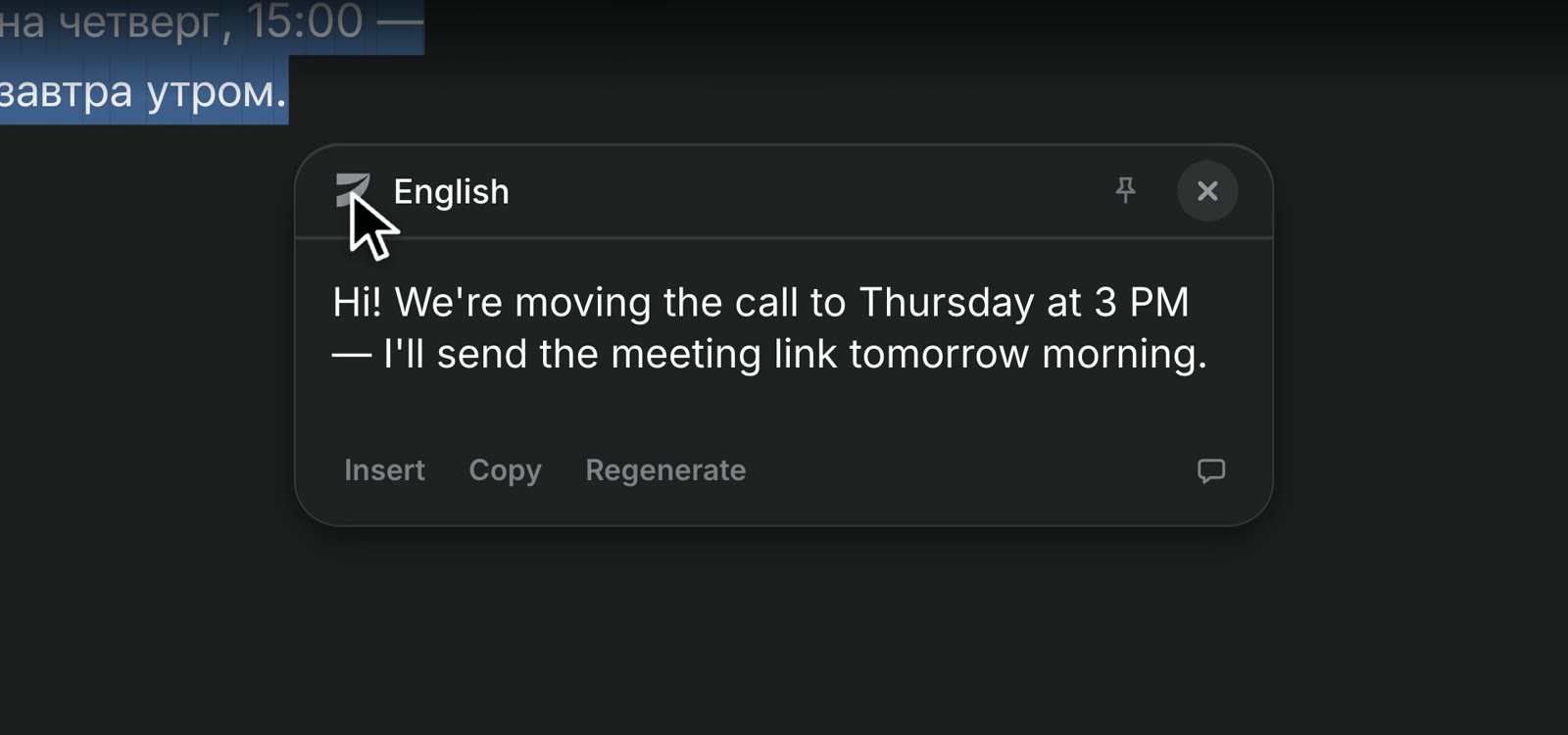
- Insert puts it in place of the selection; Copy takes it with you; nothing is written into your document until you choose. If you want it replaced straight away, switch on Settings → Text Capture → Auto-insert selection results.
- Where the context menu does not reach. In Figma, terminals and Telegram, ⌥T reads the selection itself and puts your clipboard back afterwards — how that works in each.
- Formatting survives. Headings, lists, links and bold come back as they were; in Notion, Slack and Google Docs the blocks, mentions and styles are kept too, and only the words change.
- Thirteen languages, Kazakh and Uzbek included. You choose the two you translate into in Settings → Text Capture → Translate into; the language you selected is detected.
- Text you cannot edit — a message you received, a web page — gets its translation in the bubble, and nothing is changed anywhere.
Jarq translates online, up to 6,000 characters at a time. Every install starts with 14 days of everything; after that the free plan has 5 translations or dictations a day — plans and prices. If the dot gets in your way, turn it off and keep ⌥T.
Which one to use
| Key | Back in place | Offline | Cost | |
|---|---|---|---|---|
| macOS Translate | — | Yes, in editable text | Yes, with downloaded languages | Free |
| Shortcuts action | Your own | No (show or copy) | With downloaded languages | Free |
| DeepL | ⌘C C | No (copy from its window) | — | Free up to 50,000 chars/month |
| Jarq | ⌥T | Yes, with Insert or automatically | No | Free 5 a day; Pro from $4.99/month |
If you translate now and then in Apple’s apps, the built-in Translate is enough. If you do it many times a day, in Slack, Notion, Figma or a terminal, and want it back in place with the formatting kept, that is what Jarq is for.
Questions people ask
Is there a keyboard shortcut to translate selected text on a Mac?
Not by default. Make one with a Shortcuts Quick Action (Use as Quick Action → Add Keyboard Shortcut), use DeepL’s ⌘C C, or Jarq’s ⌥T.
Is there a QTranslate for macOS?
QTranslate is Windows-only. The closest built-in thing is Control-click → Translate; for a pop-up that appears on the selection itself and translates in place, there is Jarq.
Can a Mac replace the text with its translation instead of just showing it?
Yes. macOS’s Translate panel has Replace with Translation in editable text, and Jarq has Insert (or replaces automatically with Auto-insert on). Shortcuts and DeepL show the translation for you to paste.
Why does macOS translate my English text from the wrong language?
With only a few words it can guess the source wrong. Pick the language at the top of the Translate panel. Jarq asks only for the language to translate into and detects the rest.
Does translating selected text work offline?
The built-in Translate does, once the languages are downloaded in System Settings → General → Language & Region → Translation Languages. Jarq’s translation needs a connection.